
The supported authenticated desktop targets in the current alpha are Linux and Windows. macOS DMG artifacts only prove early packaging and do not yet provide supported Keychain-backed login, so this guide must not be used to treat macOS as ready. Keep another copy of important files while testing any prerelease.
Step 1 Install the package for your operating system and connect
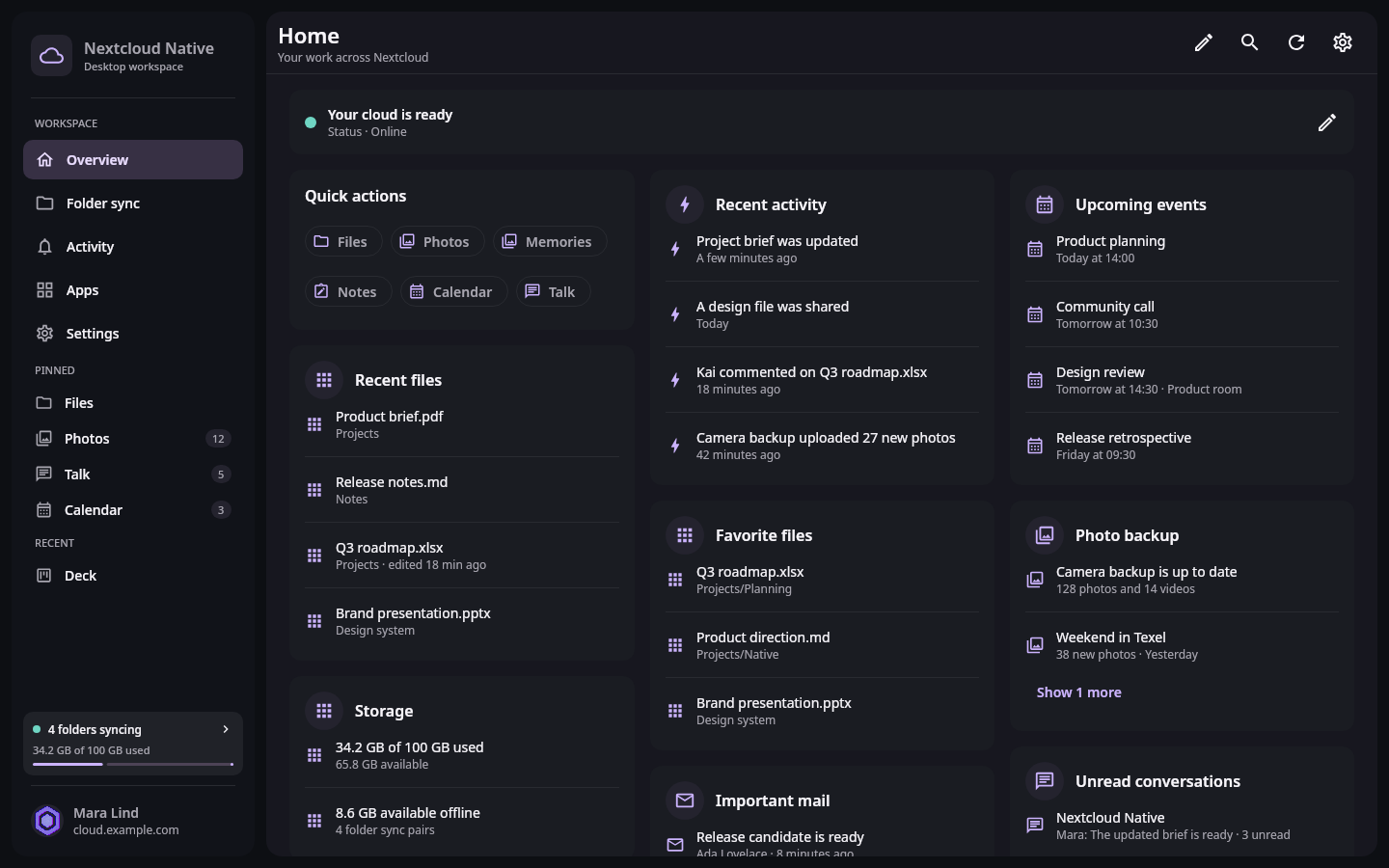
Home is the first post-login check on Linux and Windows and keeps account status visible beside useful cross-app summaries. Real Compose UI Next: Use desktop navigation and installed app workspacesDownload the exact package attached to a GitHub prerelease: DEB or RPM for the matching Linux distribution, or the x86-64 MSI for Windows. Read that release's known limitations. Windows MSIs are currently not Authenticode-signed, so verify the GitHub attestation and SHA-256 checksum when provided; never disable SmartScreen or Defender. Organization-managed Windows devices may refuse the installer by policy.
Open Nextcloud Native, enter the complete
https://server address, and finish sign-in on the server's Login Flow page. The app stores the generated app password in Linux Secret Service or Windows Credential Manager. Home should then show the account status. A macOS package must not be used for an account until supported Keychain login is implemented.Step 2 Use desktop navigation and installed app workspaces
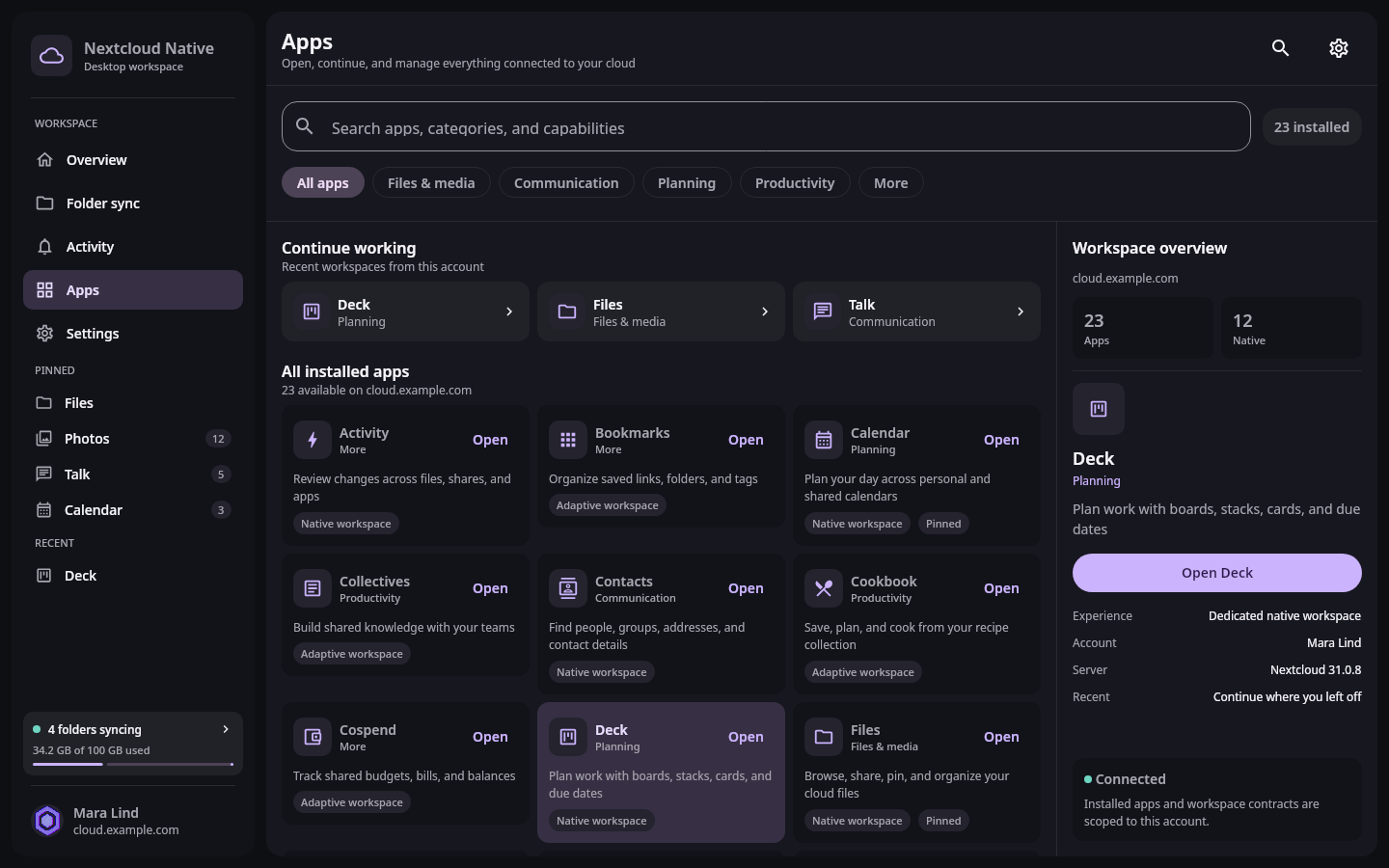
The desktop app catalog exposes installed Nextcloud apps and support boundaries while the sidebar keeps common and recent workspaces close. Real Compose UI Next: Review settings and choose the correct file integrationThe left sidebar contains Overview, Folder sync, Activity, Apps, Settings, pinned workspaces, and the most recent unpinned app. Open Apps to search the server's installed app list. Native support is capability-driven: a familiar app name does not guarantee every web action exists, and adaptive surfaces stay read-only when a verified write contract or target identity is missing.
Desktop layouts may use multiple panes, selection, context menus, and denser content. Open an item with its primary action; use the overflow or pointer context menu for secondary actions. Nextcloud Native remembers supported navigation state for each app, so switching from a folder, board, or calendar and back should return to that app rather than reset the whole workspace.
Step 3 Review settings and choose the correct file integration
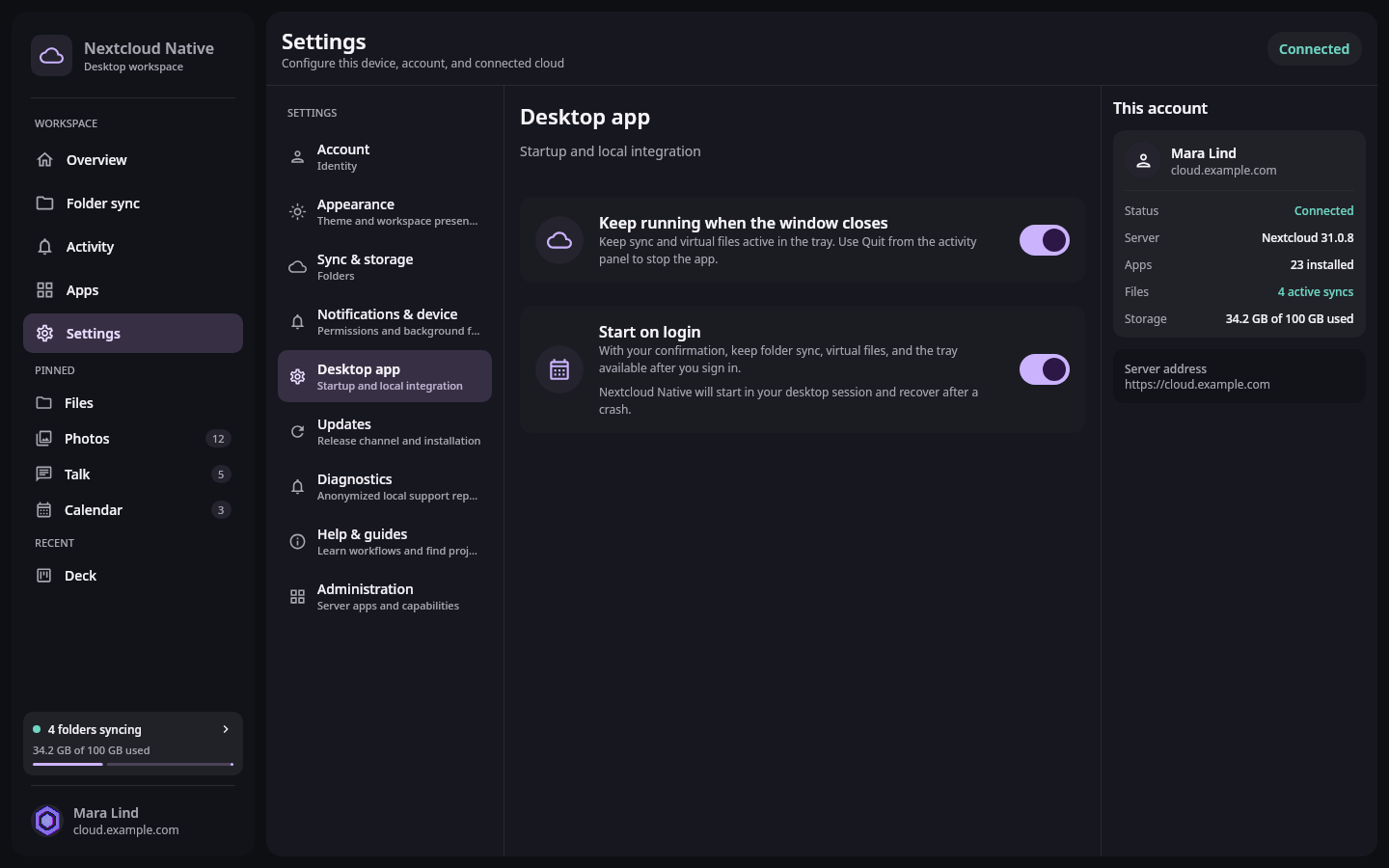
Desktop Settings separates account and app preferences from Linux and Windows integrations whose availability depends on the current operating system. Real Compose UI Open Settings to choose the theme, review the connected server, configure start-on-login, inspect update options, and enter Sync & storage. Linux supports normal folder pairs and a filesystem mount. Windows provides Cloud Files placeholders in File Explorer. These integrations share safety rules but are not interchangeable, so follow the Linux folder-sync or Windows Cloud Files guide for exact behavior.
Keep running when the window closes is enabled by default. Closing the window therefore keeps sync and virtual files active in the tray; use Open Nextcloud Native to restore the window, Show sync activity to inspect work, or Quit to stop the app cleanly. Start-on-login is a separate setting and is disabled until you enable it. Background folder-pair checks run while the desktop process is active.
Before relying on any pair, review its direction, deletion policy, conflicts, and latest successful run. If you need to report a failure, open Settings, then Diagnostics to add reproduction steps and export a bounded, anonymized report. Nothing is uploaded automatically, so review the saved report before sharing it.