
Nextcloud Native is designed as one workspace for the apps it can currently discover and render from a connected account. On Linux and Windows, the desktop sidebar stays useful inside apps, and each app remembers supported route and saveable interface state so comparing work across tools does not require starting over. macOS authenticated use is not supported yet.
Step 1 Discover the complete app catalog
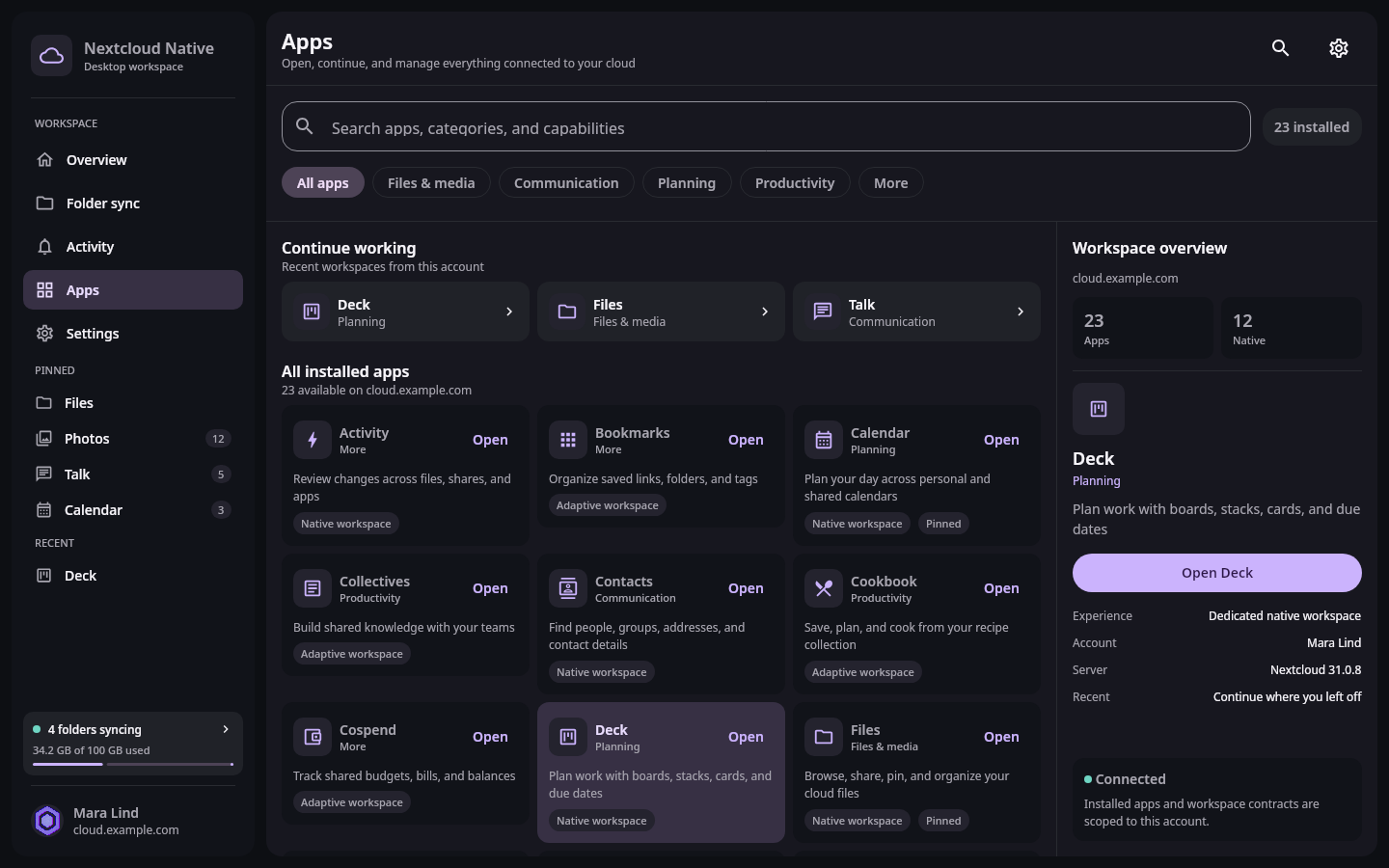
The catalog provides the complete server inventory while pinned and recent areas surface the tools that matter now. Real Compose UI Next: Switch directly from an active workspaceOpen Apps to browse everything installed on the connected server. Search by app name or scan categories such as communication, planning, media, and productivity. The catalog shows native support honestly; an app with limited verified capabilities does not pretend unsupported actions are available.
Open a tool to add it to recent work. Everyday apps such as Files, Photos, Talk, and Calendar stay pinned in the desktop sidebar, while the last unpinned app appears under Recent. This keeps the catalog complete without making it the only way to move between tools.
Step 2 Switch directly from an active workspace
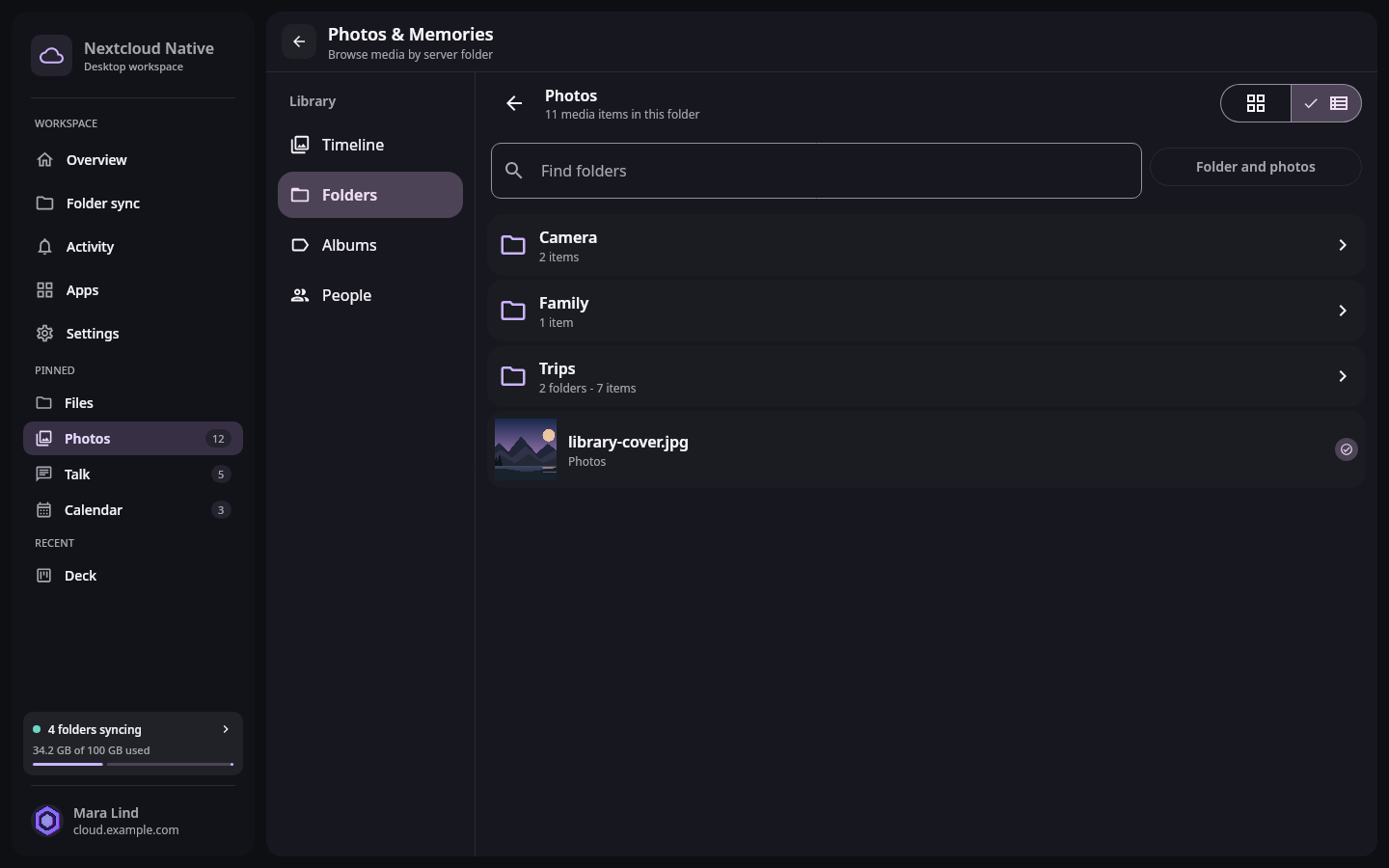
The global sidebar remains available inside Photos, so another app can open directly without discarding the current folder state. Real Compose UI Next: Work inside a discovered native appOpen a folder, conversation, board, or calendar view, then choose another pinned or recent app in the sidebar. The selected app changes in place while the account, sync status, and global destinations remain visible. The current implementation does not define a complete global keyboard-shortcut set, so use the sidebar or normal focus navigation instead of relying on undocumented key combinations.
Return to the first app. The app restores the last bounded route it knows how to serialize, including supported nested resource identity. Screen-local details such as every scroll offset or transient input are not a blanket guarantee. Navigation memory is keyed with the active account so a saved route from one account is not reused as another account's resource context.
Step 3 Work inside a discovered native app
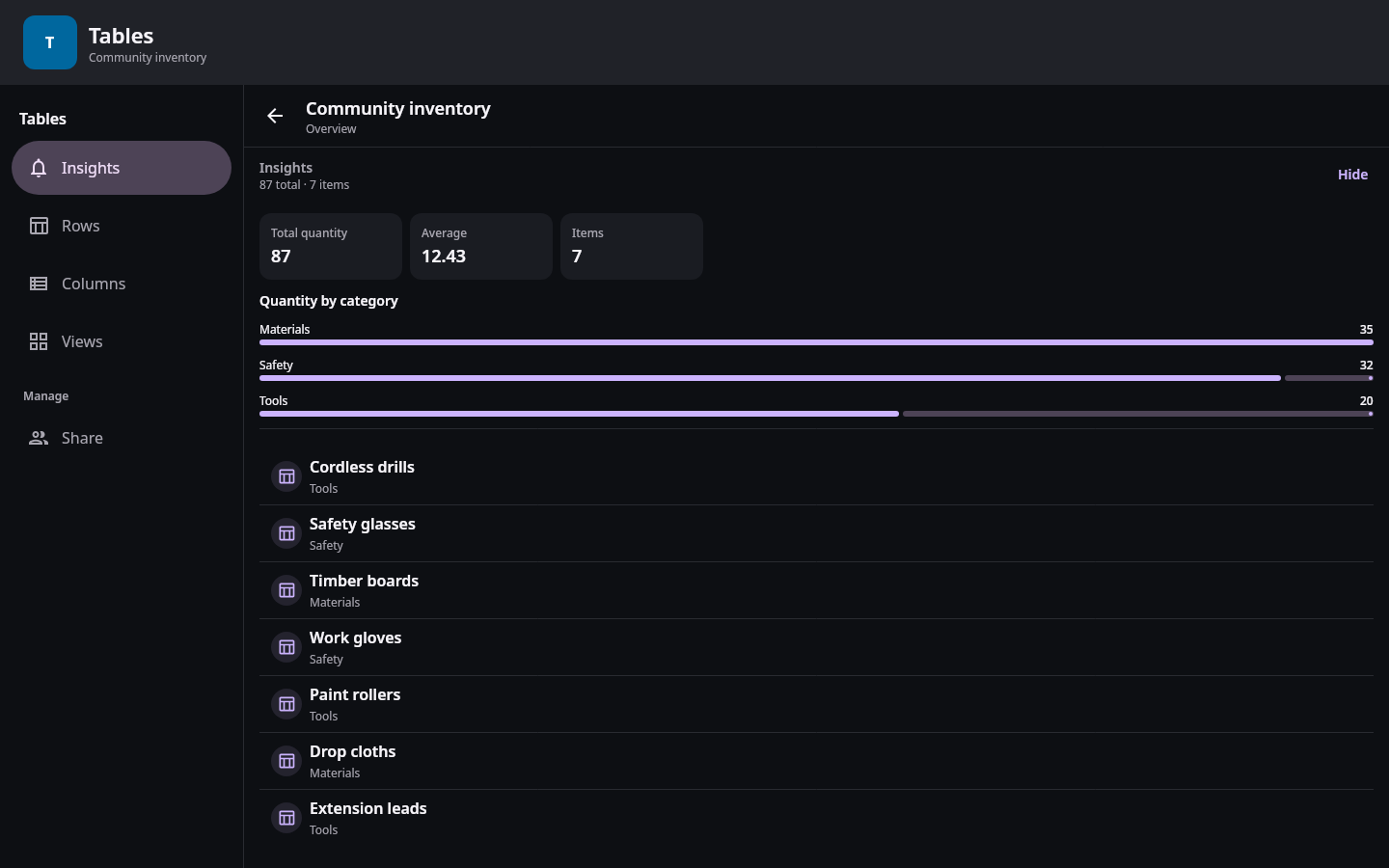
A verified dynamic app opens on a useful collection rather than a web page or raw API response, while retaining normal native navigation. Real Compose UI Open an installed app that uses a verified dynamic contract. Nextcloud Native chooses a useful entry point such as a mailbox, table, board, recipe library, or record collection. Parent and child context stay connected, so actions receive the correct resource identity instead of asking you to type internal IDs.
Use the app's own navigation for destinations inside that tool and the global sidebar for switching tools. If the server does not verify a required action or permission, the interface remains read-only and explains why. Returning later restores the last valid nested route without inventing unsupported behavior.