
Linux folder sync keeps a normal local directory connected to one Nextcloud directory while the desktop process is running. It is intended for files used by ordinary desktop applications. It is separate from the Linux virtual filesystem mount, which represents remote placeholders and hydrates content on demand.
Step 1 Inspect the folder-sync workspace and current health
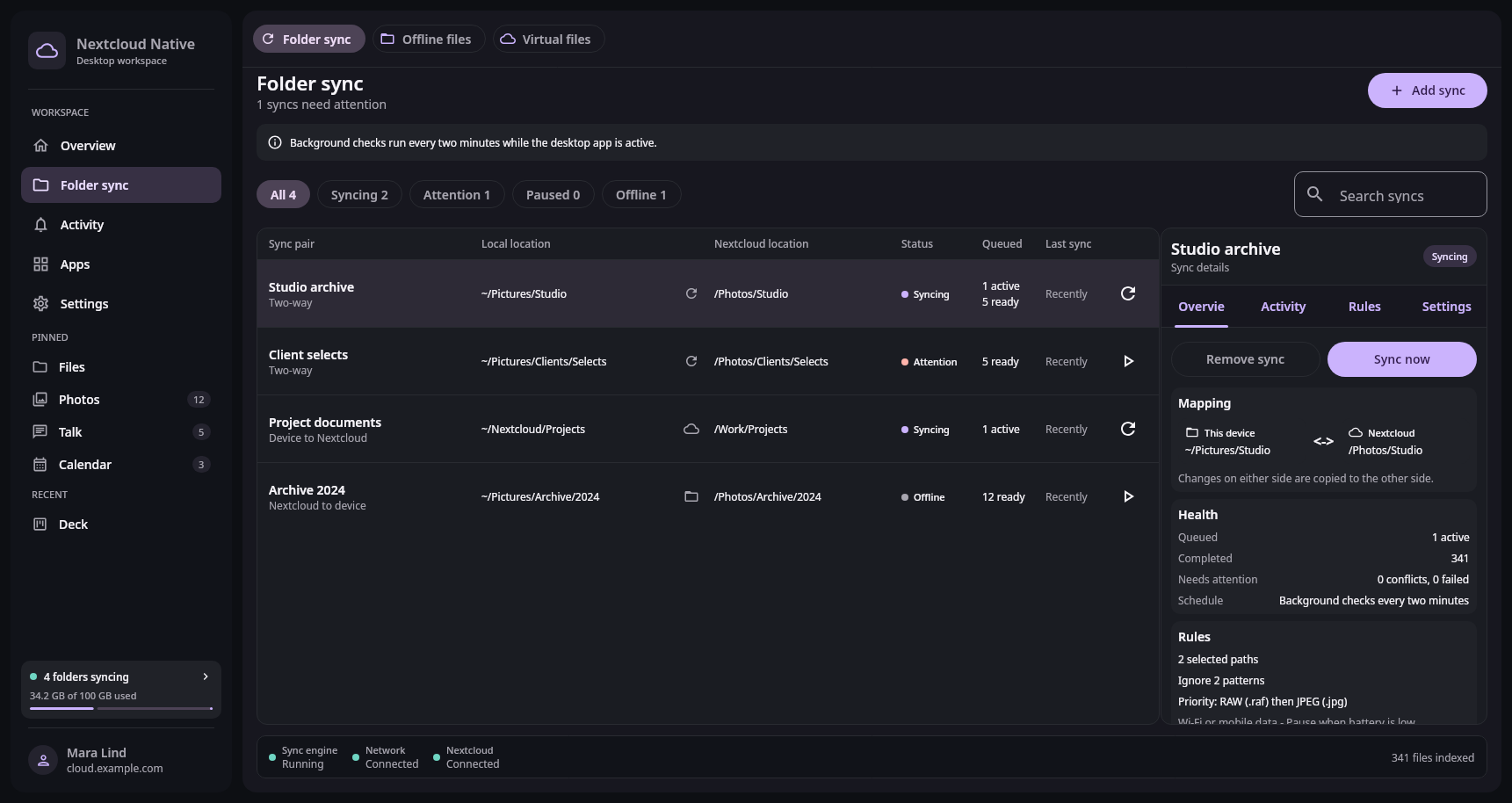
The Linux desktop workspace uses a dense pair list and inspector to expose mapping, schedule, rules, conflicts, and failures together. Real Compose UI Next: Map a local directory to the intended Nextcloud folderOpen Folder sync from the sidebar. Existing pairs show their local and Nextcloud roots, direction, queued work, and last run. Select a pair to inspect its configuration and attention states. The desktop service checks configured pairs about every two minutes while the process is active, and Sync now remains available for an immediate requested run.
Closing the main window keeps sync active in the tray by default. Use Show sync activity to inspect work, Open Nextcloud Native to restore the window, or Quit to stop the app and release its services cleanly. You can disable Keep running when the window closes in Settings if closing the window should quit instead.
Start-on-login is separate and is disabled until you enable it. Without it, background checks do not begin until you launch Nextcloud Native after signing in to the computer. A stale last-run time, paused state, offline network, or visible failure needs attention even when the local files still look normal.
Step 2 Map a local directory to the intended Nextcloud folder
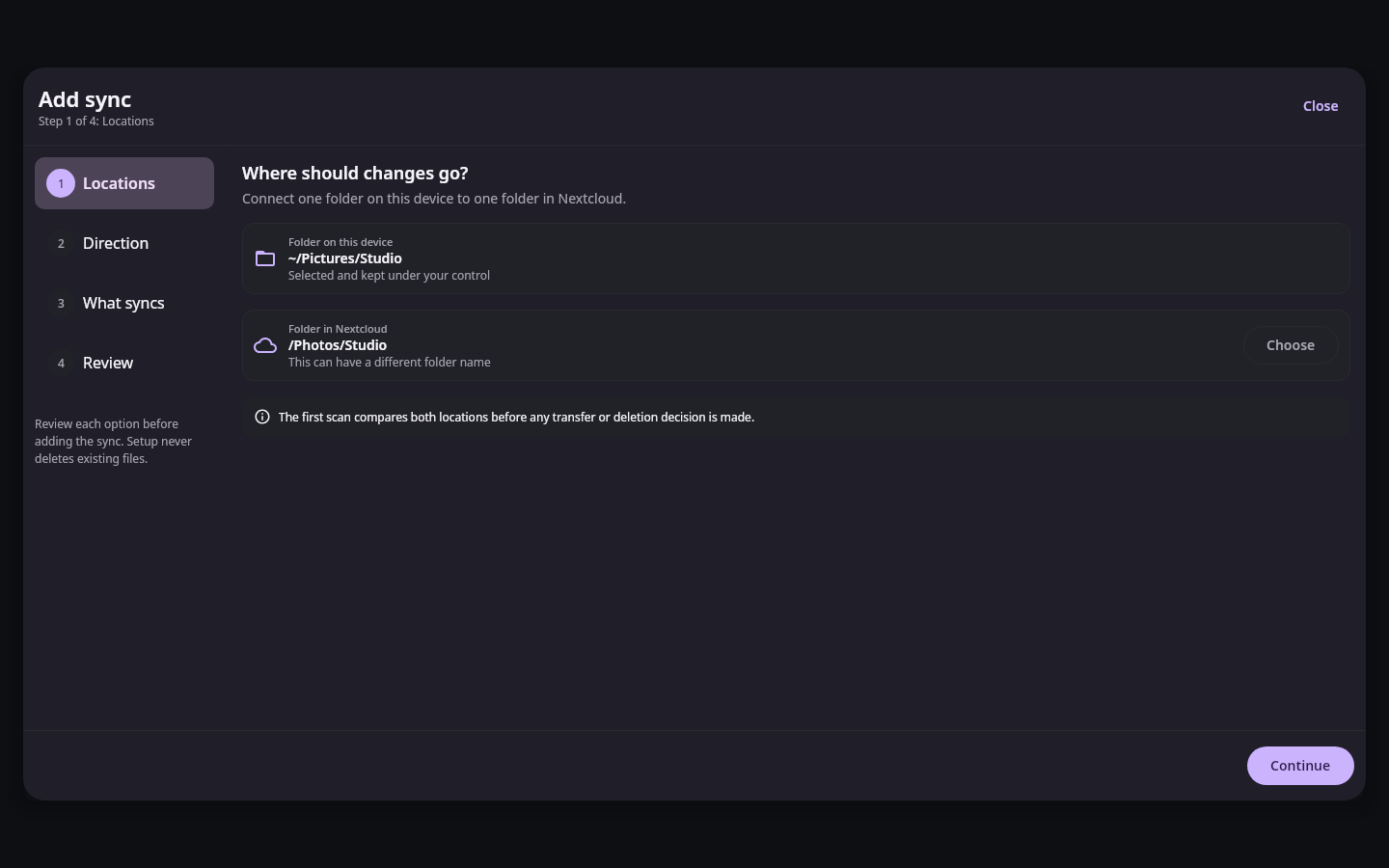
Linux setup keeps both roots and the intended direction visible before the pair can scan or transfer any files. Real Compose UI Next: Configure safe rules and resolve the first scanChoose Add sync, select the local directory, then choose the remote root in the native Nextcloud browser. Avoid a directory managed by another sync program, a build cache, or a mounted remote filesystem. Two independent engines acting on the same tree can interpret temporary files, renames, or deletions differently.
Choose Two-way, Device to Nextcloud, or Nextcloud to device according to the actual ownership of the data. Review the complete paths, not only their final folder names. Creating a pair does not itself delete either root, and removing the configuration later also leaves the current local and server files in place.
Step 3 Configure safe rules and resolve the first scan
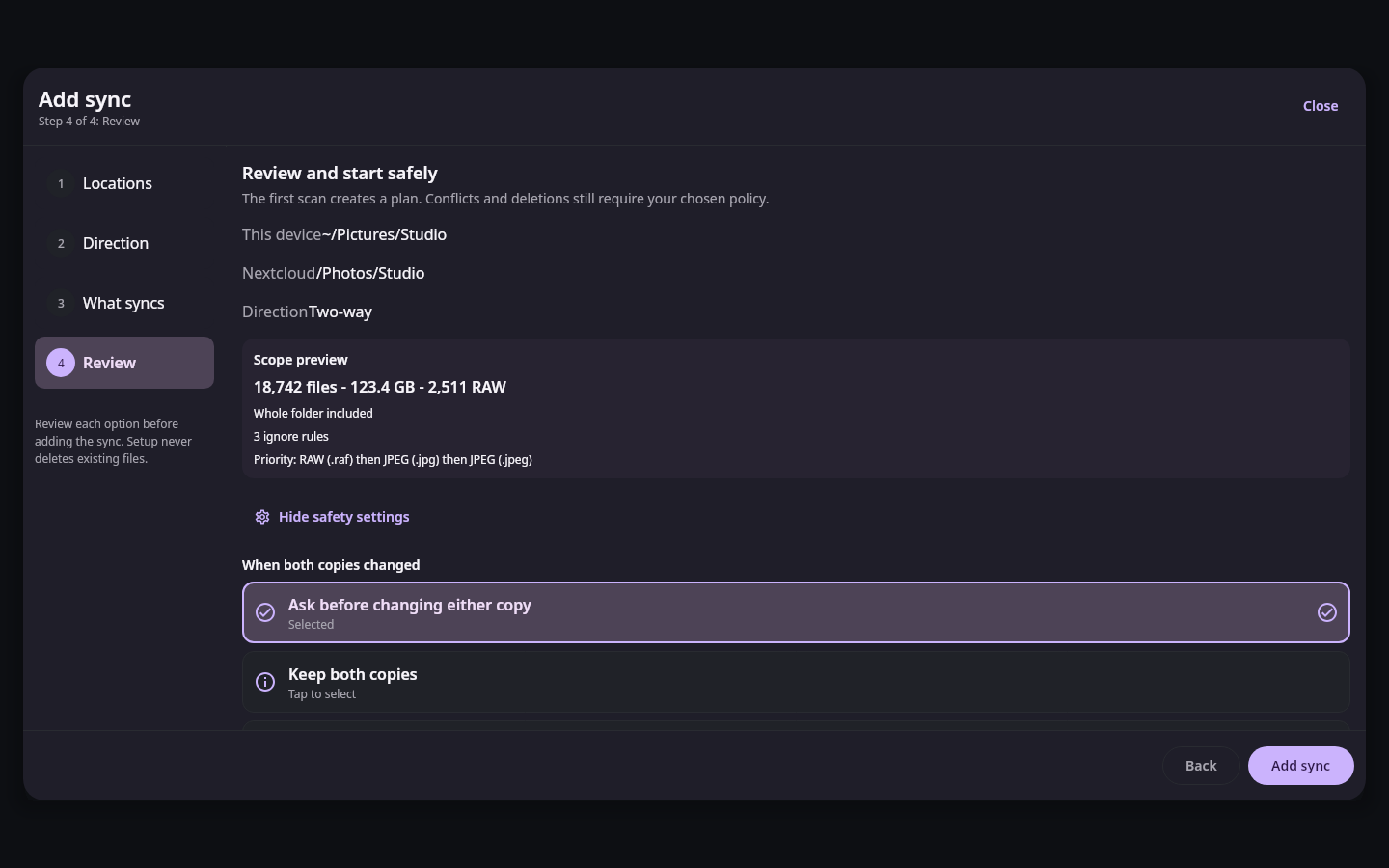
Linux pair review shows scope and opens the safety settings before the first synchronization; scroll to review deletion, network, and power choices as well as conflicts. Real Compose UI Start with Ask before changing either copy or Keep both copies for conflicts. Treat deletion policy separately: propagating a deletion can remove the counterpart even when there is no content conflict. Add ignores for generated output, lock files, or temporary application data, and review the estimated file count and size before continuing.
Watch the first scan and queued operations. If a conflict or ambiguous interrupted operation appears, compare both versions and preserve both when uncertain. A successful scan is evidence for that generation only. Keep independent backups of important data while the product remains an alpha, and do not treat bidirectional synchronization as backup history.