
On Windows, Nextcloud Native integrates with the Cloud Files API so remote content can appear as placeholders in File Explorer and download when opened. This is not the same workflow as a conventional folder pair. Cloud Files is still under prerelease qualification, so begin with disposable synthetic data and keep another copy of anything important.
Step 1 Activate and locate the Windows Cloud Files root
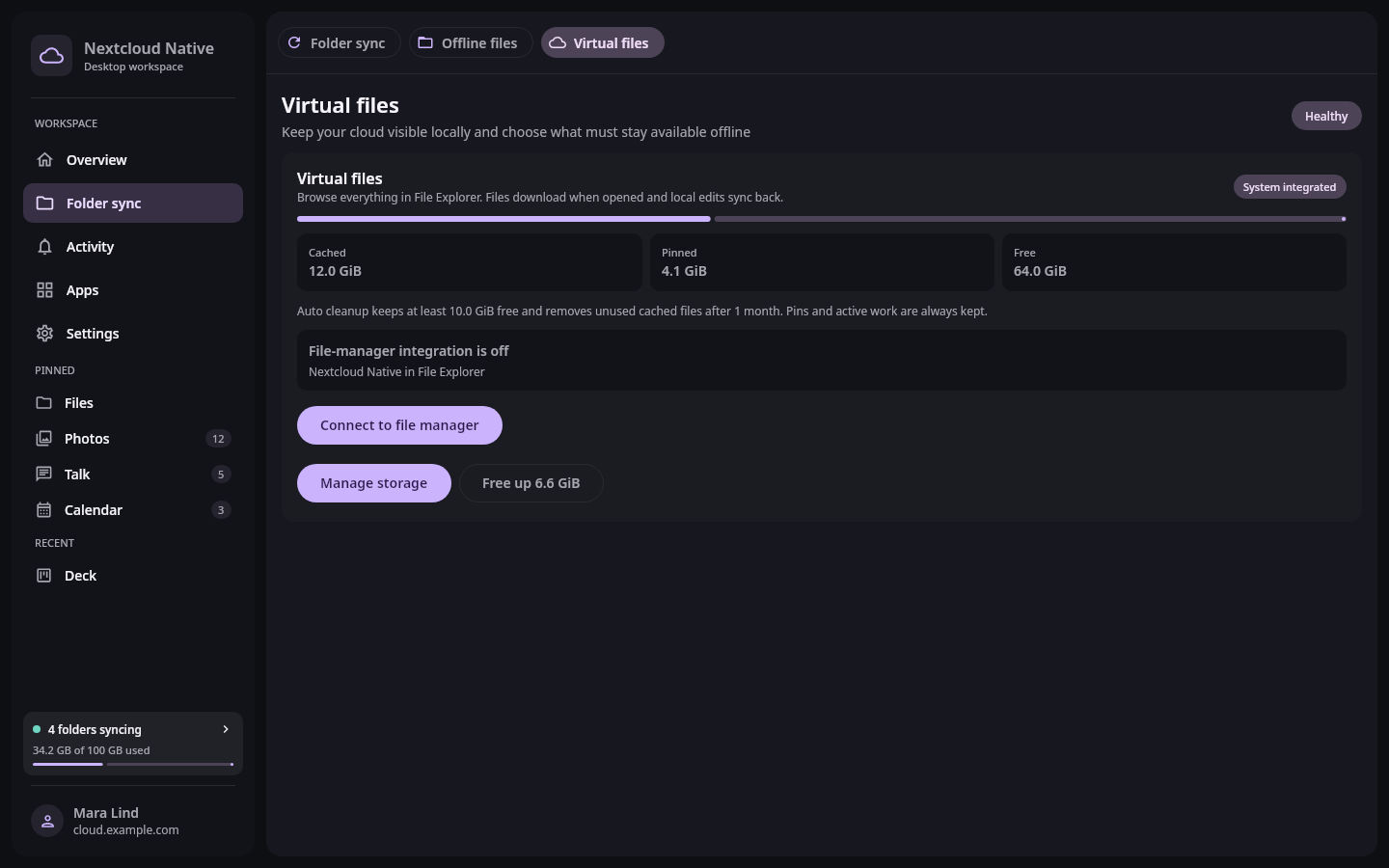
Windows virtual-file setup is managed from Sync and storage and reports whether the Cloud Files provider is active for the connected account. Real Compose UI Next: Open placeholders, keep content local, or free eligible spaceOpen Settings, choose Sync & storage, then open Virtual files. Activate the system provider if it is not already active. When registration succeeds, the location is reported as Nextcloud Native in File Explorer. The root is account-scoped, and signing out disconnects the provider for that account.
If activation fails, keep the failure message and retry only after checking that the app is the current installed version. Do not manually delete a registered sync root or copy provider metadata between accounts. Recovery handles stale registrations, legacy roots, and damaged Cloud Files metadata while preserving the existing local root and its data.
Step 2 Open placeholders, keep content local, or free eligible space
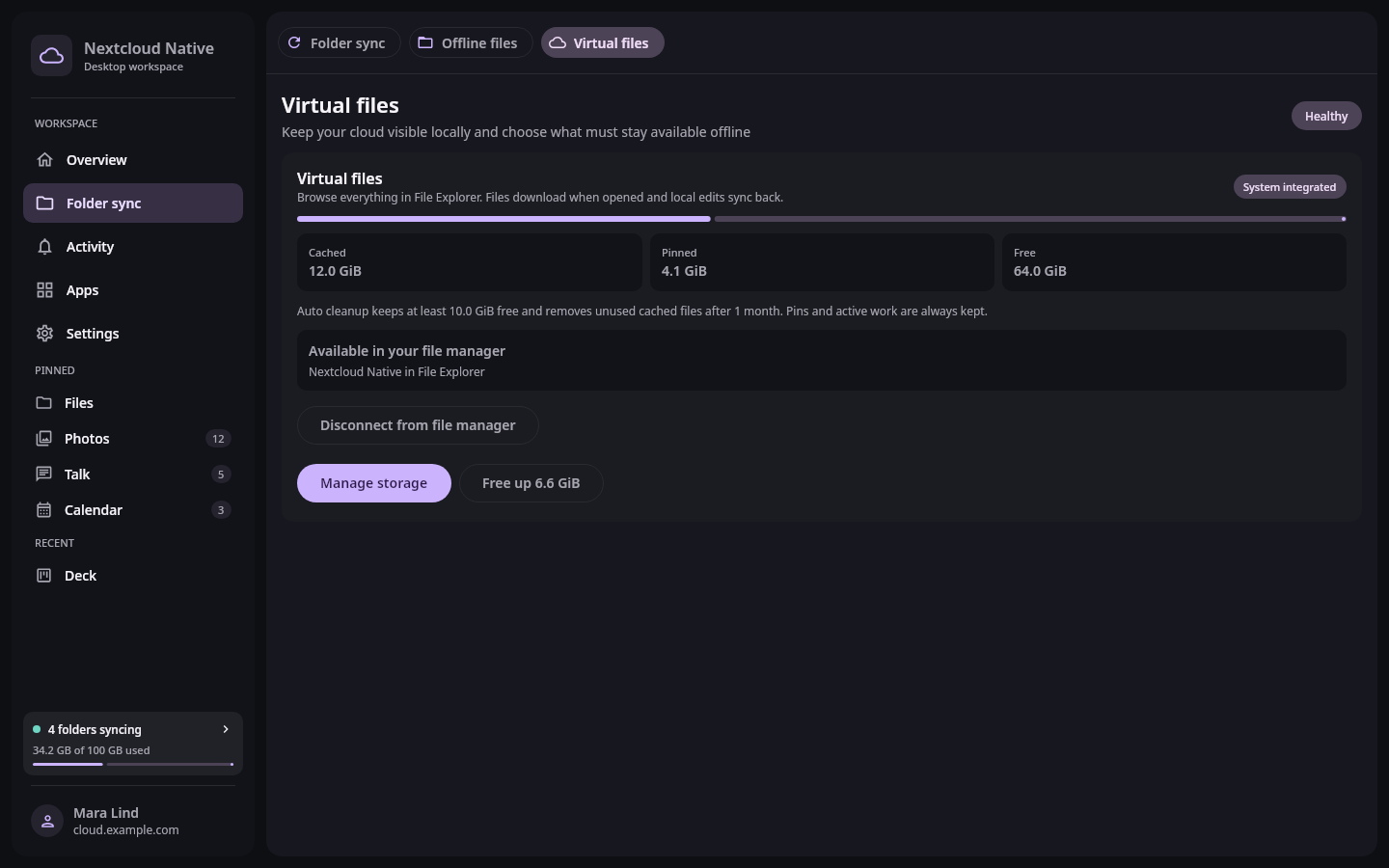
The Windows storage view distinguishes represented cloud data from bytes hydrated locally and from files explicitly pinned to remain on the computer. Real Compose UI Next: Let guarded writeback reconcile edits and conflictsBrowse the root in File Explorer. Directory entries can be placeholders that represent Nextcloud content without storing the complete file. Opening a placeholder hydrates the required bytes and validates the current generation. Use the Windows availability action when a file must remain on the computer; a pin is protected more strongly than recently opened cache content.
Windows can dehydrate in-sync placeholders when space is needed. Free up space applies only to content the provider considers safely disposable. Active files, pins, and retained edit recovery must stay protected. Seeing a file name in Explorer therefore does not prove the original is available offline; check its Windows availability state before disconnecting.
Step 3 Let guarded writeback reconcile edits and conflicts
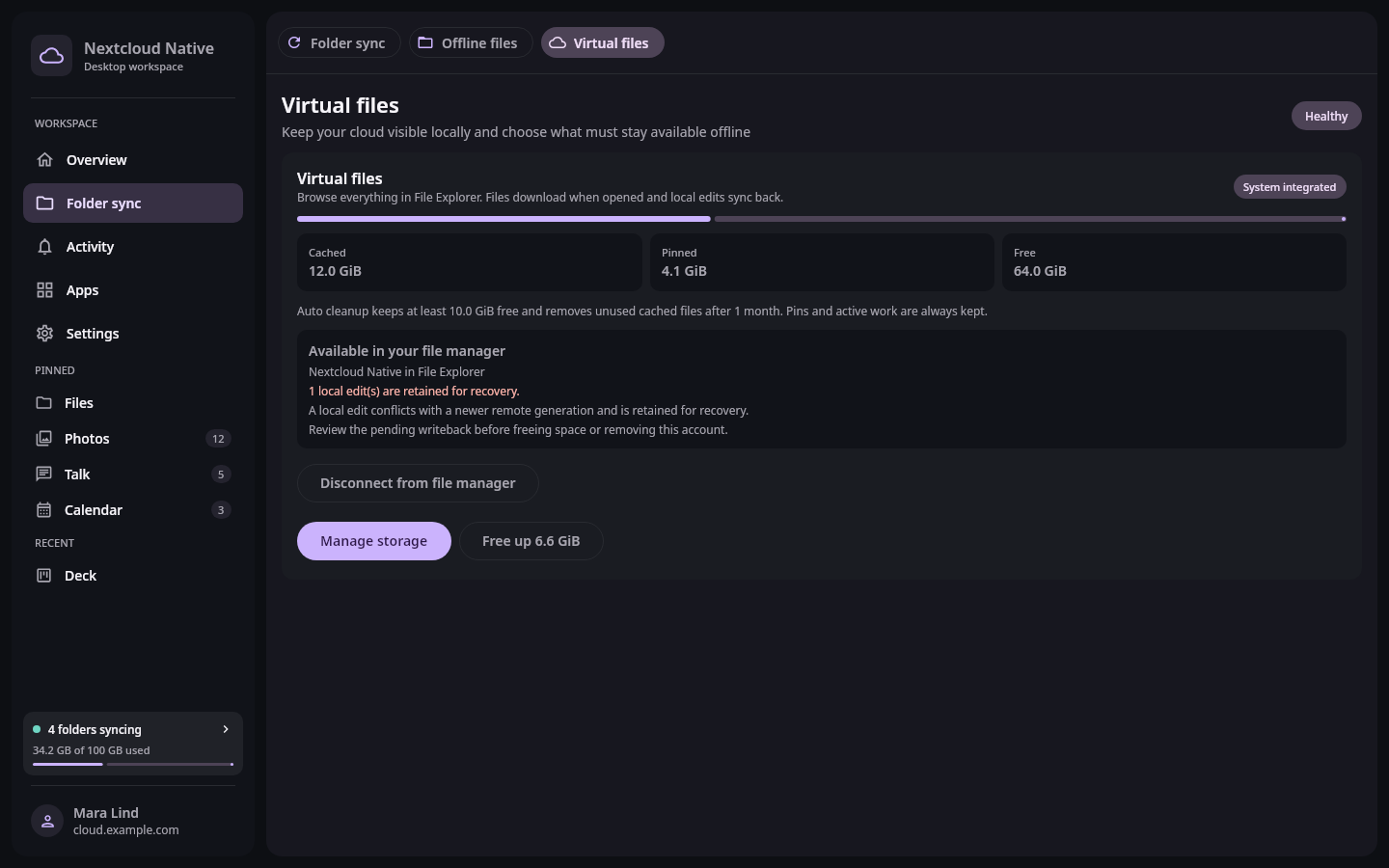
Cloud Files writeback keeps recovery metadata and surfaces conflicts when a local edit cannot safely replace a newer Nextcloud version. Real Compose UI When a desktop application edits a hydrated file, Nextcloud Native stages the local generation and writes it back with the expected remote identity. If Nextcloud changed first, the provider retains the local edit and marks a conflict instead of overwriting the server version. Failed writebacks use bounded retries and remain visible when manual attention is required.
Do not repeatedly rename, move, or reopen an item while its result is unknown. Keep the app installed and signed in so recovery can reconcile pending work. Current recovery serializes competing File Explorer population requests and protects placeholder updates from concurrent access; retry from the visible failure instead of deleting the sync root. Before uninstalling or removing an account, confirm that no pending or failed writebacks remain. The Windows MSI is currently unsigned, but disabling SmartScreen or Defender is never part of Cloud Files troubleshooting.