
Android folder sync connects a folder chosen through the system document-tree picker to one Nextcloud folder. It is different from opening Nextcloud through Android's Files provider and different from pinning a cloud file offline. Start with disposable or independently backed-up data until you have reviewed direction, deletion, and conflict behavior.
Step 1 Choose the Android and Nextcloud folders
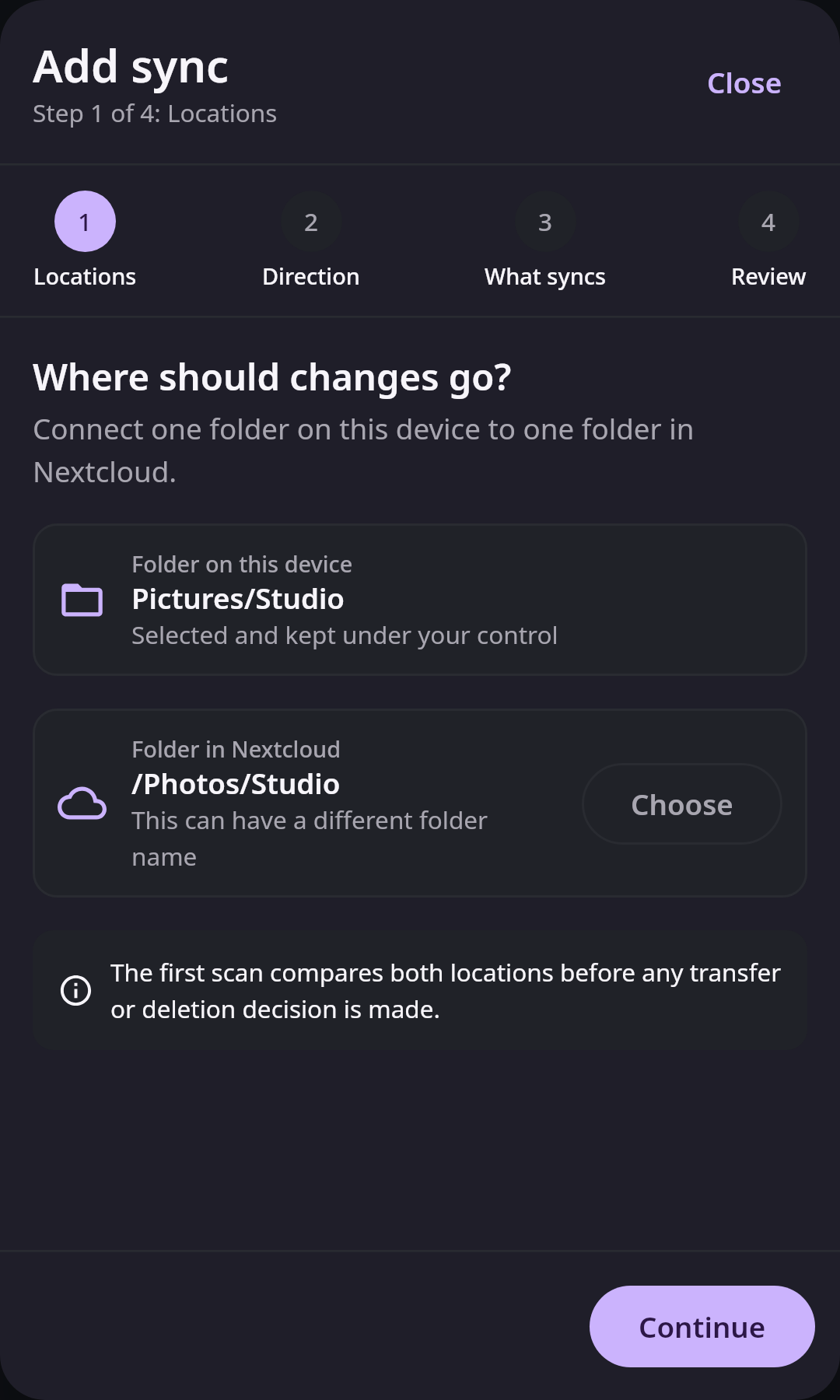
The Android setup flow receives access only to the folder chosen in the system picker and keeps both sides visible before creating the pair. Real Compose UI Next: Set direction, deletion, conflicts, and background constraintsOpen Folder sync and choose Add sync. Select the local root with Android's system folder picker. Nextcloud Native requests a durable read and write grant only for that chosen tree; broad all-files access is not required for an ordinary pair. Then choose the remote root with the native Nextcloud folder browser.
Review both locations carefully. Do not select a folder already managed by another sync client, an app cache, or an operating-system directory. Setup detects an existing identical mapping, but it cannot prevent a different application from writing the same tree. The pair is not created until you finish the review step.
Step 2 Set direction, deletion, conflicts, and background constraints
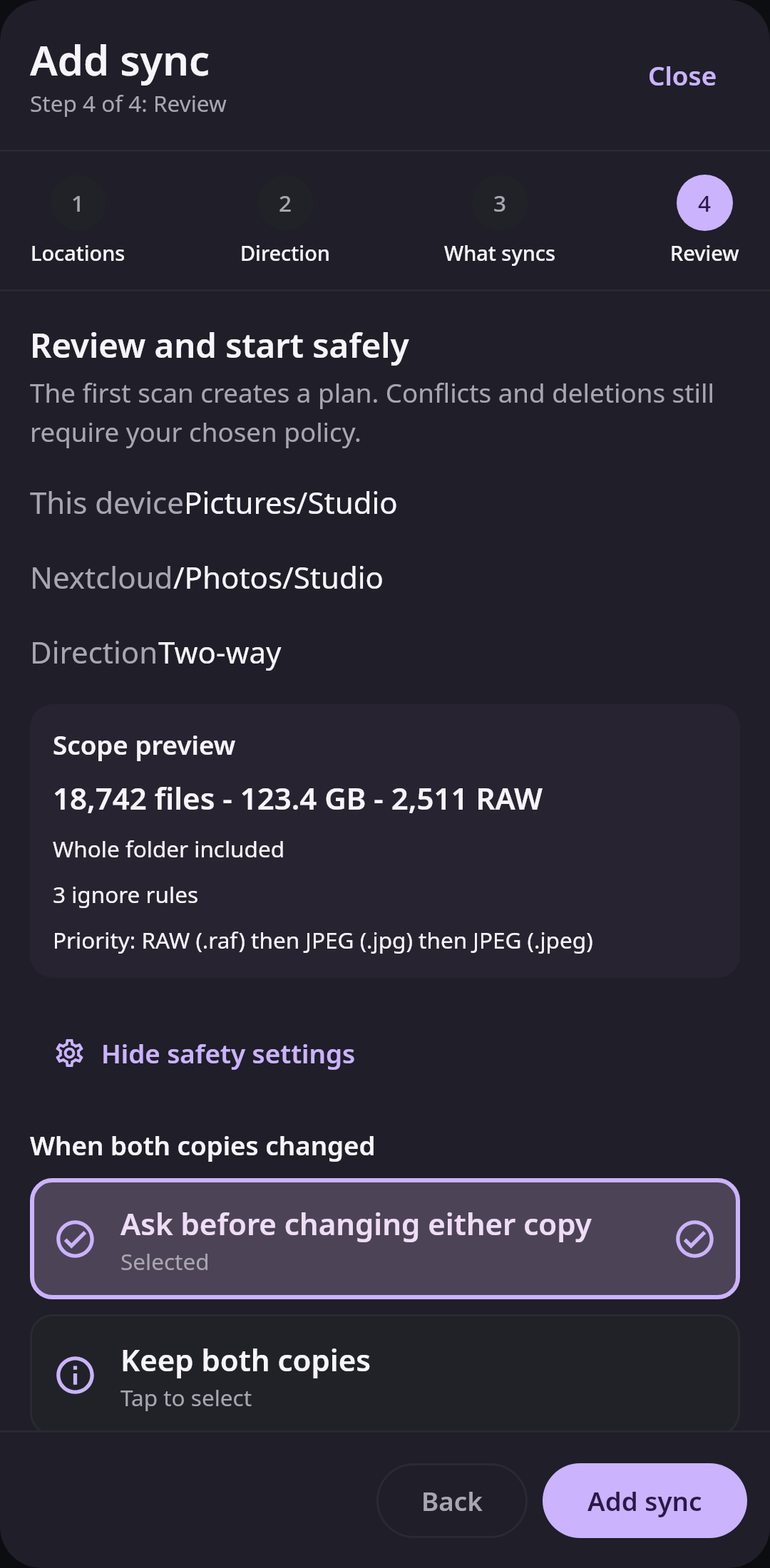
Android exposes sync policy before work starts; scroll through the expanded safety settings to review deletion, network, and power choices as well as conflicts. Real Compose UI Next: Review the first scan and resolve attention statesChoose Two-way only when local and remote edits should both propagate. Device to Nextcloud never writes remote changes back to the selected Android folder; Nextcloud to device never uploads local edits. Choose Ask before changing either copy or Keep both copies while learning the workflow. Review the deletion policy separately because a propagated deletion is not the same as a content conflict.
Select any ignored patterns or a bounded subset, then choose network and power constraints. Android schedules durable periodic checks through WorkManager, approximately every 15 minutes, but the operating system decides the exact run time. Unmetered-network, battery-not-low, and charging constraints can intentionally delay a run.
Step 3 Review the first scan and resolve attention states
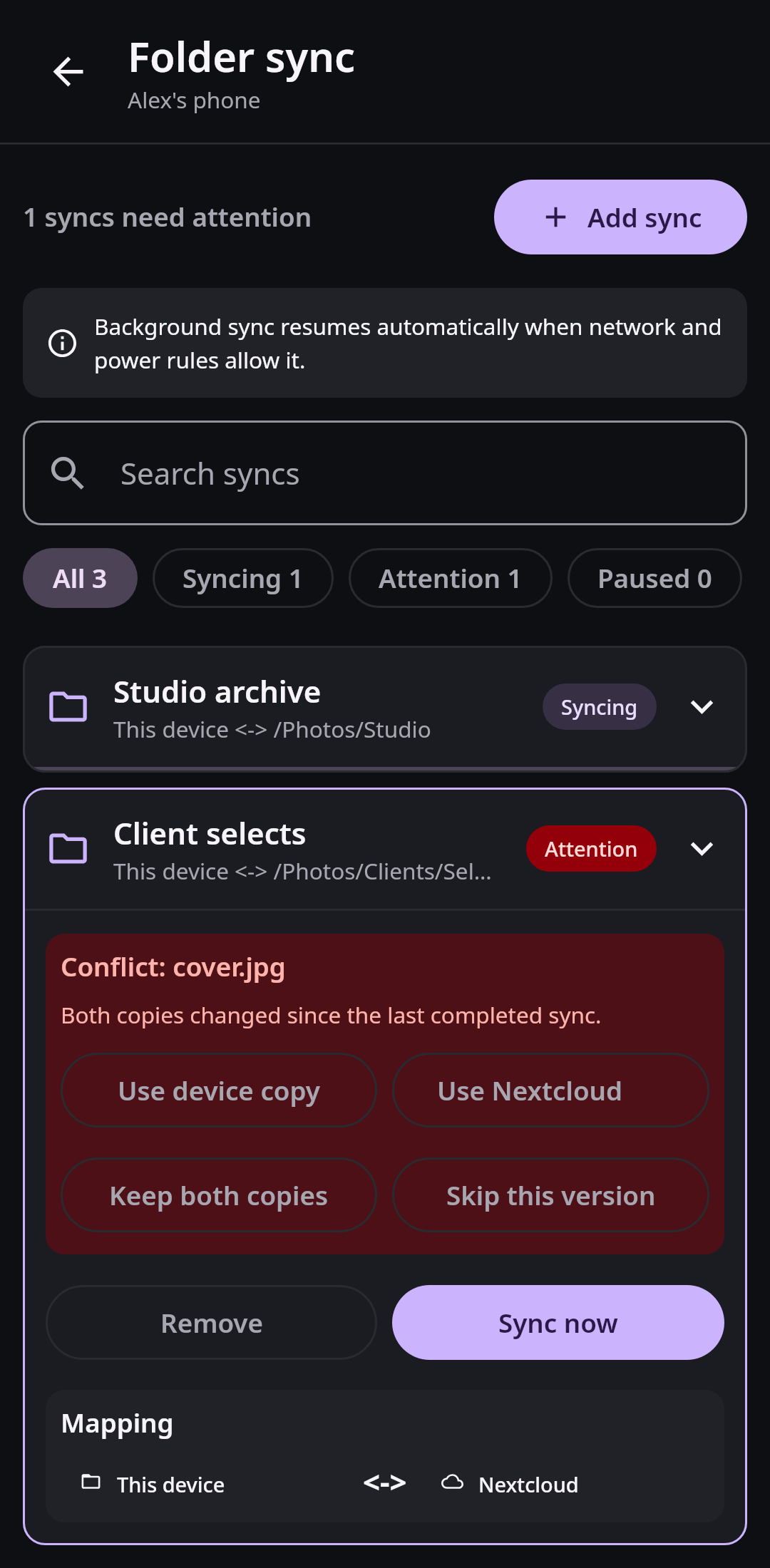
The Android sync center distinguishes queued, active, failed, conflicted, paused, and up-to-date states instead of reducing them to one progress bar. Real Compose UI Create the pair, then run or wait for the first scan while connected. Review the queued operation count before treating the mapping as safe. Up to date means that the latest completed scan found no unresolved work; it does not prove that a future Android schedule will run at an exact minute.
If both sides changed, choose a conflict action only after comparing the versions. Keep both copies is the conservative recovery. If a result is unknown after interruption, let the durable coordinator reconcile it rather than creating a second pair or repeatedly retrying. Removing the pair removes its configuration and schedule; the current implementation does not delete local or server files when the pair itself is removed.