
Nextcloud Native distinguishes a server listing, a cached preview, an original stored offline, and a synchronized folder. This guide is for individual files and folders you explicitly keep on the Android device. Use the separate Android folder-sync guide when a normal device folder must exchange changes in both directions.
Step 1 Make the required files available offline
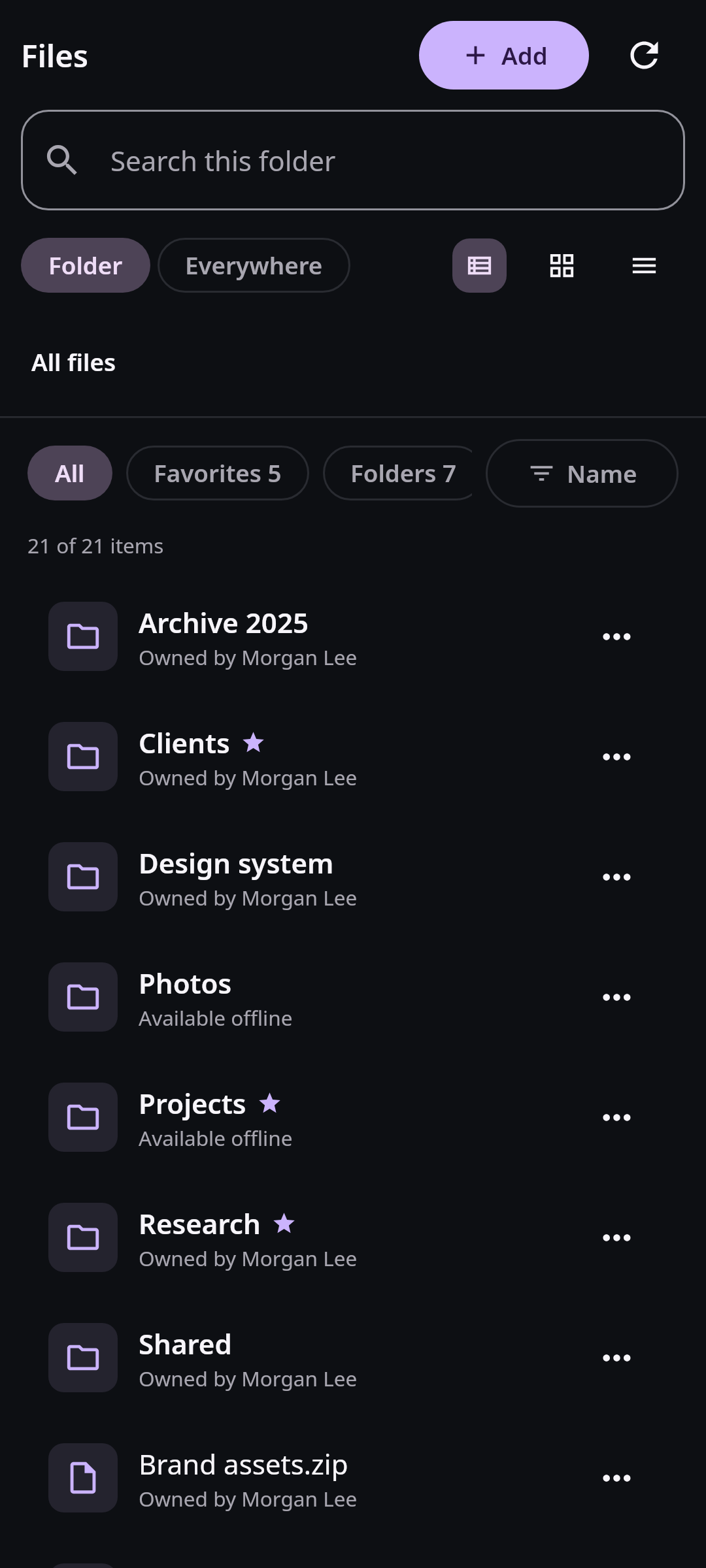
The Android file list exposes offline state beside ordinary file actions so a visible preview is not mistaken for a stored original. Real Compose UI Next: Review storage and Android system Files integrationOpen Files, browse to an item, open its menu, and choose Make available offline. For a folder, Nextcloud Native plans the recursive contents before downloading them. Keep the app online until the item reports that it is available. A queued, downloading, or waiting-for-network state is not offline readiness.
The download intent and work queue are durable on Android. WorkManager can resume eligible work after the app leaves the foreground or the device restarts, subject to Android scheduling and the selected network or power constraints. Before a trip, test the exact file in airplane mode instead of assuming that a completed preview means the original is present.
Step 2 Review storage and Android system Files integration
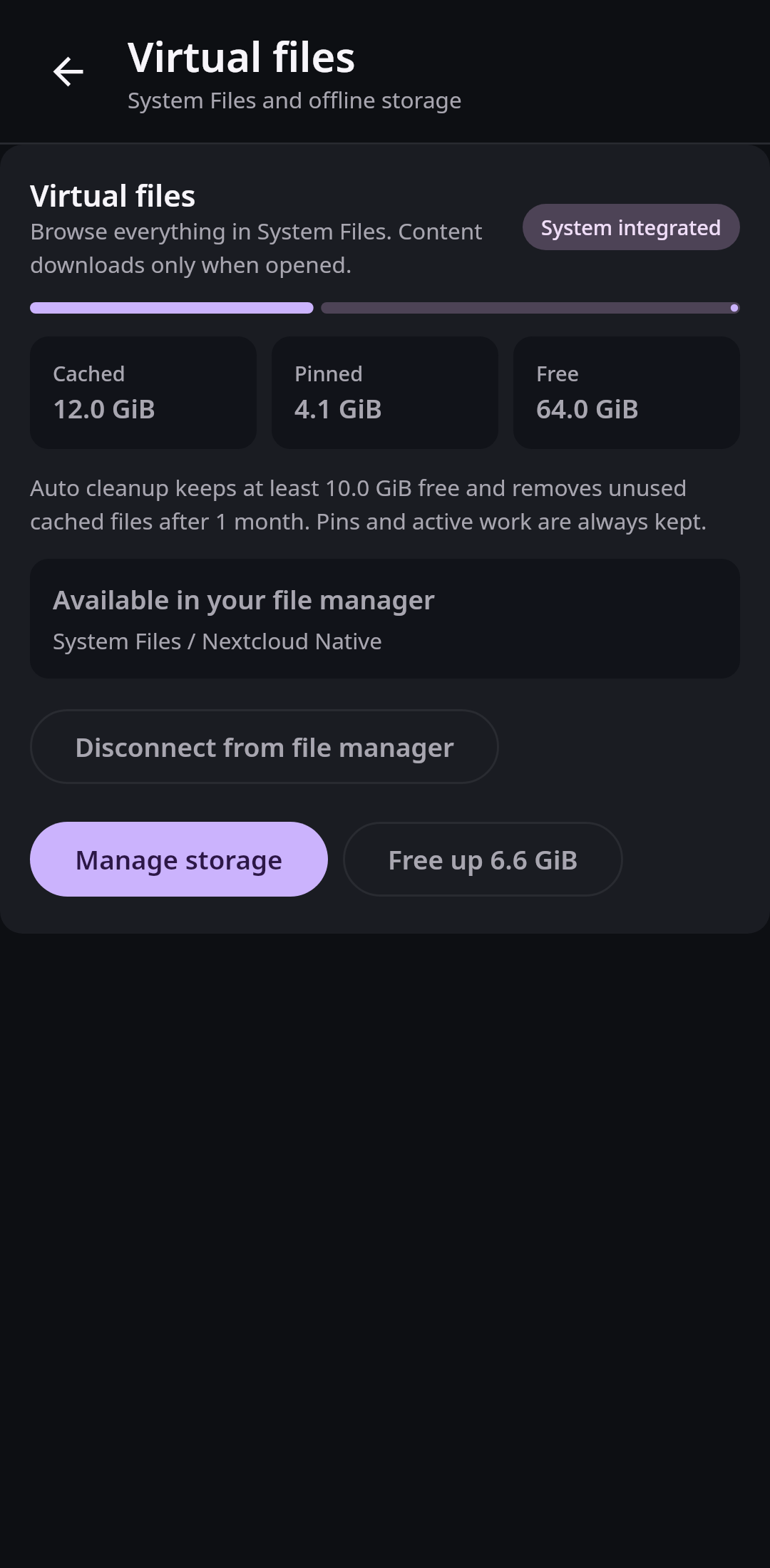
Android storage management keeps pinned originals and recoverable edits separate from disposable cached content used by the system Files provider. Real Compose UI Next: Remove an offline copy safely or recover a failureOpen Settings, choose Sync & offline, and review Virtual files. Nextcloud Native is exposed automatically under System Files / Nextcloud Native while the account is signed in. Opening a remote item through another Android app hydrates a complete cached generation. That ordinary cache may be reclaimed later; an explicit offline pin is a stronger retention class.
Automatic cleanup applies only to eligible disposable content. Pinned items, active work, and retained writeback recovery are protected. If the storage view reports pending or conflicted edits, resolve those before freeing space. Do not clear the application's storage from Android settings as a substitute for managed cleanup; that also removes account and recovery state.
Step 3 Remove an offline copy safely or recover a failure
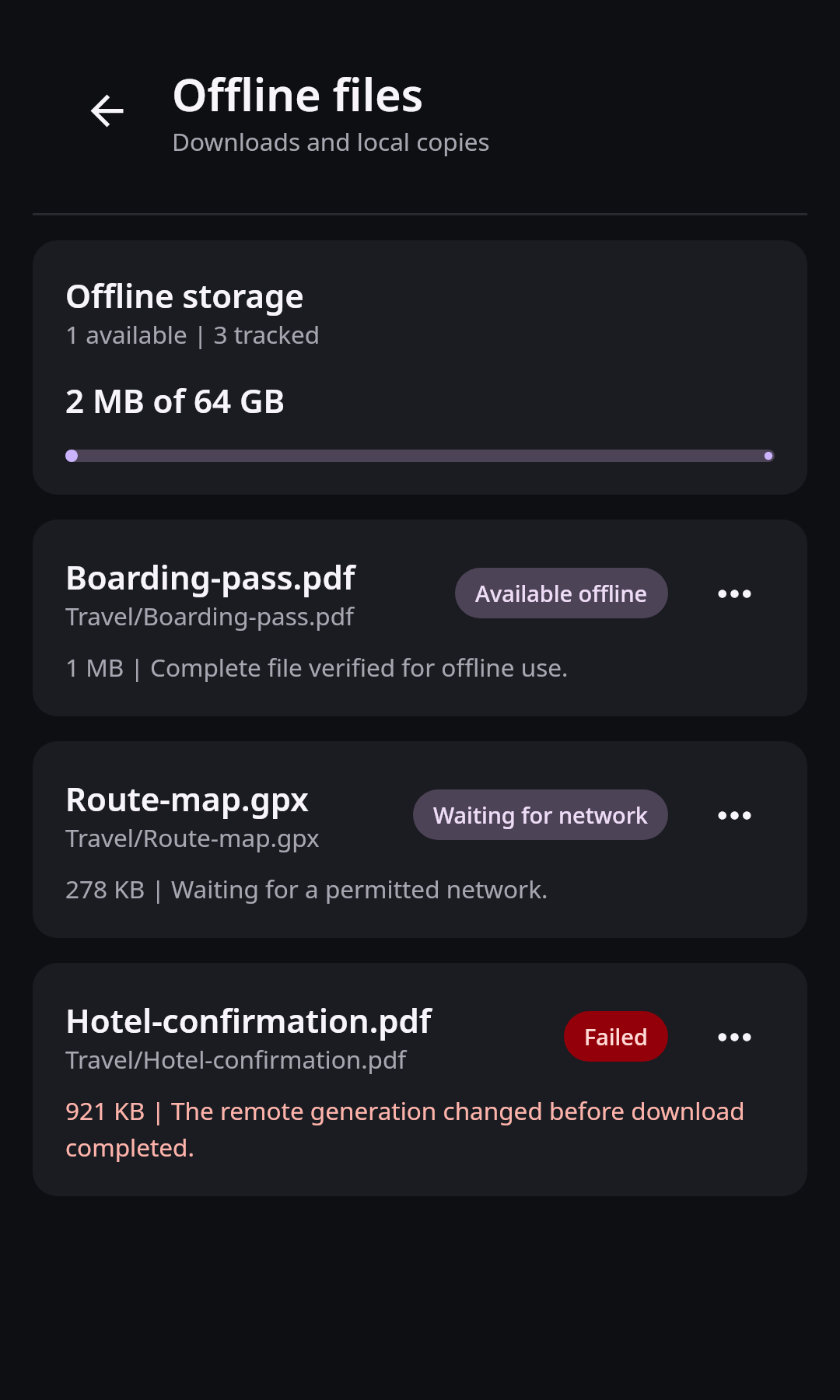
Transfer state remains explicit on Android, allowing failed or incomplete work to be fixed without presenting a partial file as complete. Real Compose UI To stop keeping an item offline, return to its menu and choose Remove local copy. This removes the protected device copy after the app validates the target; it does not delete the file from Nextcloud. Folder actions follow the same distinction. If you need to remove the server file, use the separate destructive delete action and review its confirmation carefully.
For a failed download, check connectivity, server permissions, available device space, and whether the remote version changed. Retry from the visible failure state. Nextcloud Native writes to staging storage and validates a complete generation before publishing it as available, so a partial transfer should never be presented as a finished offline file.